

◆
JavaScript 获取元素宽高的 API 详解
window 对象常用 width/height 的相关 api
window.innerWidth:浏览器窗口可视区宽度 去除工具条与滚动条的窗口高度与宽度window.outerWidth:整个窗口的宽度 包括所有的界面元素(如工具栏/滚动)window.screen.width:返回屏幕的总宽度,整个电脑屏幕的宽度window.screen.availWidth:返回屏幕的宽度(不包括 Windows 任务栏)
元素的 width && height 常用 api
| value(is_readOnly) | description |
|---|---|
| offsetWidth(只读) | 返回元素的宽度(包括元素宽度、内边距、边框和滚动条,不包括外边距) |
| offsetHeight(只读) | 返回元素的高度(包括元素高度、内边距、边框和滚动条,不包括外边距) |
| clientWidth(只读) | 返回元素的宽度(包括元素宽度、内边距,不包括边框和外边距和滚动条) |
| clientHeight(只读) | 返回元素的高度(包括元素高度、内边距,不包括边框和外边距和滚动条) |
| style.width | 返回元素的宽度(包括元素宽度,不包括内边距、边框和外边距) |
| style.height | 返回元素的高度(包括元素高度,不包括内边距、边框和外边距) |
| scrollWidth(只读) | 返回元素的宽度(包括元素宽度、内边距和溢出尺寸,不包括边框、外边距滚动条),无溢出的情况,与 clientWidth 相同 |
| scrollHeight(只读) | 返回元素的高度(包括元素高度、内边距和溢出尺寸,不包括边框、外边距滚动条),无溢出的情况,与 clientHeight 相同 |
| offsetTop(只读) | 返回元素的上外缘距离最近采用定位父元素内壁的距离,如果父元素中没有采用定位(css 中 position 属性值为 relative、absolute 或者 fixed)的,则是获取上外边缘距离文档内壁的距离。 |
| offsetLeft(只读) | 此属性和 offsetTop 的原理是一样的,只不过方位不同 |
| clientTop(只读) | 一个元素顶部边框的宽度(以像素表示)。border-top-width |
| clientLeft (只读) | 一个元素左边边框的宽度(以像素表示)。border-left-width |
| scrollLeft | 此属性可以获取或者设置对象的最左边到对象在当前窗口显示的范围内的左边的距离,也就是元素被滚动条向左拉动的距离。 |
| scrollTop | 此属性可以获取或者设置对象的最顶部到对象在当前窗口显示的范围内的顶边的距离,也就是元素滚动条被向下拉动的距离 |
style.width返回的是字符串,如28px,offsetWidth返回的是数值28;style.width/style.height与scrollWidth/scrollHeight是可读写的属性,clientWidth/clientHeight offsetWidth/offsetHeight是只读属性style.width的值需要事先定义,否则取到的值为空。而且必须要定义在html里(内联样式),如果定义在css里,style.height的值仍然为空,但元素偏移有效;而offsetWidth则仍能取到。offsetWidth/offsetHeight/clientWidth/clientHeight/scrollWidth/scrollHeight属性值会被四舍五入为一个整数
关于 window/document/body 代码示例
::: demo [vanilla]
<!DOCTYPE html>
<html>
  <body>
    <div id="window-property"></div>
    <br />
    <div id="dom-property"></div>
    <br />
    <div id="body-property"></div>
    <br />
  </body>
  <script>
    const windowProperty = document.getElementById('window-property');
    for (let i = 0; i < 4; i++) {
      windowProperty.innerHTML += '<p class="p-test"></p>';
    }
    const pTest = windowProperty.getElementsByClassName('p-test');

    function getWindowWh() {
      pTest[0].innerText =
        '浏览器窗口可视区宽度 去除工具条与滚动条的窗口高度与宽度 window.innerWidth:' +
        window.innerWidth;
      pTest[1].innerText =
        '整个窗口的宽度 包括所有的界面元素(如工具栏/滚动)window.outerWidth:' +
        window.outerWidth;
      pTest[2].innerText =
        '返回屏幕的总宽度,整个电脑屏幕的宽度 window.screen.width:' +
        window.screen.width;
      pTest[3].innerText =
        '返回屏幕的宽度(不包括Windows任务栏)window.screen.availWidth:' +
        window.screen.availWidth;
    }

    getWindowWh();

    const domProperty = document.getElementById('dom-property');
    for (let i = 0; i < 9; i++) {
      domProperty.innerHTML += '<p class="p-dom-test"></p>';
    }
    const pDomTest = domProperty.getElementsByClassName('p-dom-test');

    function getDomWh() {
      pDomTest[0].innerText =
        'width + 左右padding document.documentElement.clientWidth:' +
        document.documentElement.clientWidth;
      pDomTest[1].innerText =
        'width + 左右padding + 左右boder document.documentElement.offsetWidth:' +
        document.documentElement.offsetWidth;
      pDomTest[2].innerText =
        '获取指定标签内容层的真实宽度(可视区域宽度+被隐藏区域宽度) document.documentElement.scrollWidth:' +
        document.documentElement.scrollWidth;
      pDomTest[3].innerText =
        'boder.top(上边框的宽度) document.documentElement.clientTop:' +
        document.documentElement.clientTop;
      pDomTest[4].innerText =
        'boder.left(上边框的宽度) document.documentElement.clientLeft:' +
        document.documentElement.clientLeft;
      pDomTest[5].innerText =
        '当前元素 上/左边框 外边缘 到 最近的已定位父级(offsetParent) 上/左边框内边缘的距离。' +
        '如果父级都没有定位,则分别是到body 顶部 和左边的距离 document.documentElement.offsetTop:' +
        document.documentElement.offsetTop;
      pDomTest[6].innerText =
        '当前元素 上/左边框 外边缘 到 最近的已定位父级(offsetParent) 上/左边框内边缘的距离。' +
        '如果父级都没有定位,则分别是到body 顶部 和左边的距离 document.documentElement.offsetLeft:' +
        document.documentElement.offsetLeft;
      pDomTest[7].innerText =
        '内容层顶部 到 可视区域顶部的距离 document.documentElement.scrollTop:' +
        document.documentElement.scrollTop;
      pDomTest[8].innerText =
        '内容层左端 到 可视区域左端的距离. document.documentElement.scrollLeft:' +
        document.documentElement.scrollLeft;
    }

    getDomWh();

    const bodyProperty = document.getElementById('body-property');
    for (let i = 0; i < 9; i++) {
      bodyProperty.innerHTML += '<p class="p-body-test"></p>';
    }
    const pbodyTest = bodyProperty.getElementsByClassName('p-body-test');

    function getbodyWh() {
      pbodyTest[0].innerText =
        'width + 左右padding document.body.clientWidth:' +
        document.body.clientWidth;
      pbodyTest[1].innerText =
        'width + 左右padding + 左右boder document.body.offsetWidth:' +
        document.body.offsetWidth;
      pbodyTest[2].innerText =
        '获取指定标签内容层的真实宽度(可视区域宽度+被隐藏区域宽度) document.body.scrollWidth:' +
        document.body.scrollWidth;
      pbodyTest[3].innerText =
        'boder.top(上边框的宽度) document.body.clientTop:' +
        document.body.clientTop;
      pbodyTest[4].innerText =
        'boder.left(上边框的宽度) document.body.clientLeft:' +
        document.body.clientLeft;
      pbodyTest[5].innerText =
        '当前元素 上/左边框 外边缘 到 最近的已定位父级(offsetParent) 上/左边框内边缘的距离。' +
        '如果父级都没有定位,则分别是到body 顶部 和左边的距离 document.body.offsetTop:' +
        document.body.offsetTop;
      pbodyTest[6].innerText =
        '当前元素 上/左边框 外边缘 到 最近的已定位父级(offsetParent) 上/左边框内边缘的距离。' +
        '如果父级都没有定位,则分别是到body 顶部 和左边的距离 document.body.offsetLeft:' +
        document.body.offsetLeft;
      pbodyTest[7].innerText =
        '内容层顶部 到 可视区域顶部的距离 document.body.scrollTop:' +
        document.body.scrollTop;
      pbodyTest[8].innerText =
        '内容层左端 到 可视区域左端的距离. document.body.scrollLeft:' +
        document.body.scrollLeft;
    }

    getbodyWh();

    window.addEventListener('resize', () => {
      getWindowWh();
      getDomWh();
      getbodyWh();
    });
  </script>
</html>
{
  "show": true
}
:::
如下图所示 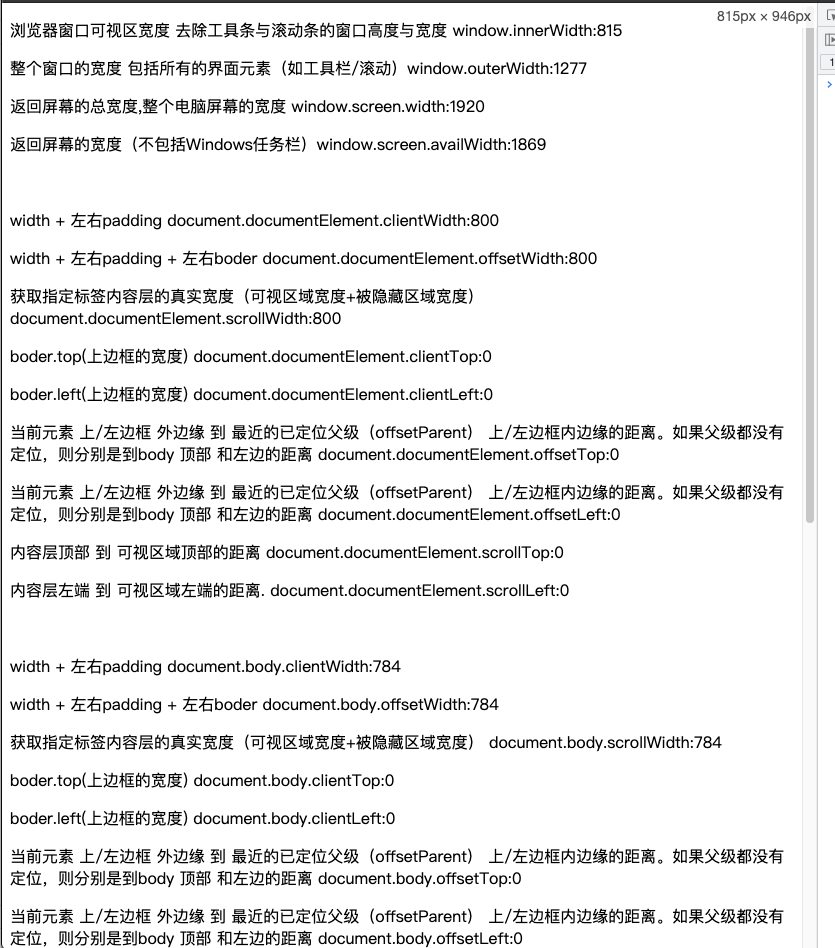
可以发现 window.innerWidth、window.outerWidth、document.documentElement.clientWidth 等都是有各自的宽度的 区别如下
window.innerWidth需去除工具条与滚动条的窗口高度与宽度window.outerWidth不会document.documentElement.offsetWidth/clientWidth比window.innerWidth少15像素是因为 浏览器的滚动条占据了15像素document.body.offsetWidth/clientWidth比document.documentElement.offsetWidth/clientWidth少16像素是因为 body 的 margin 值是8像素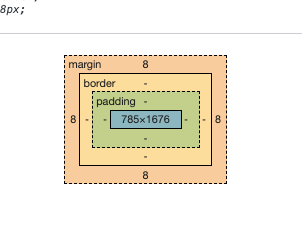
还没有留言,来发表第一条吧~